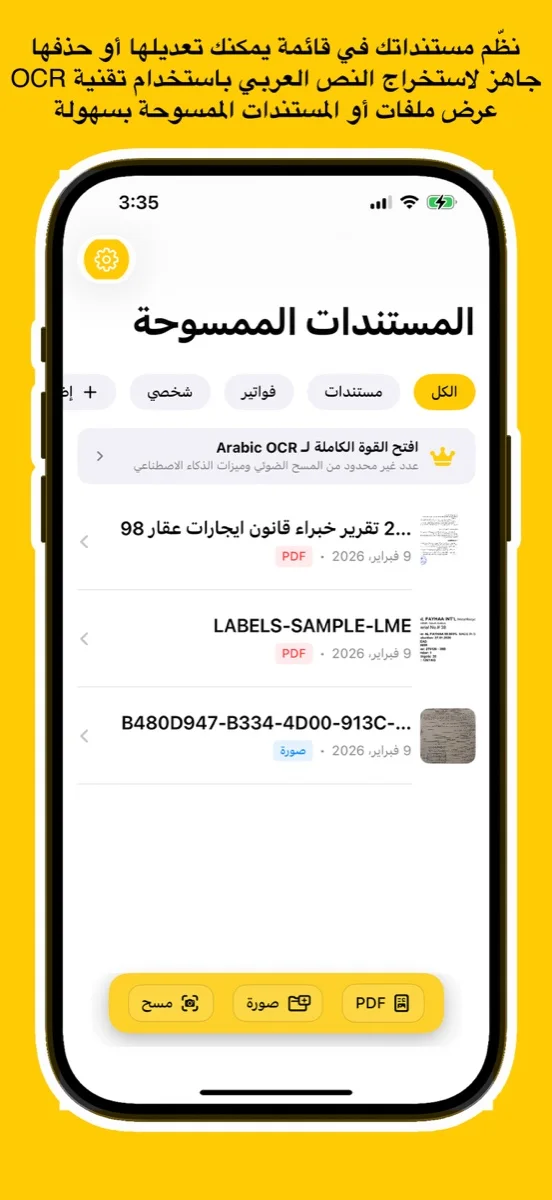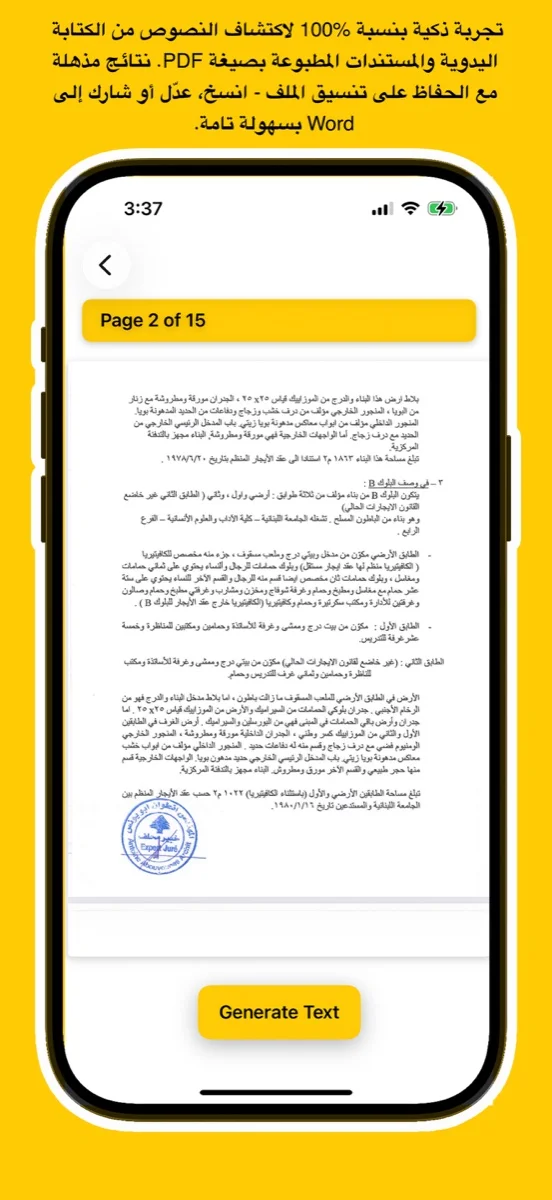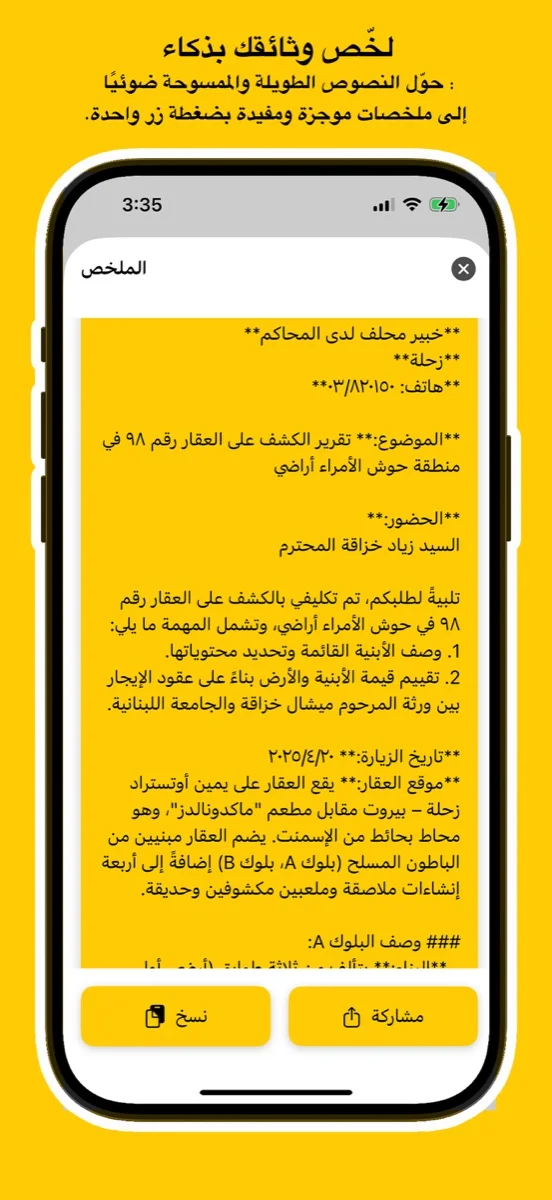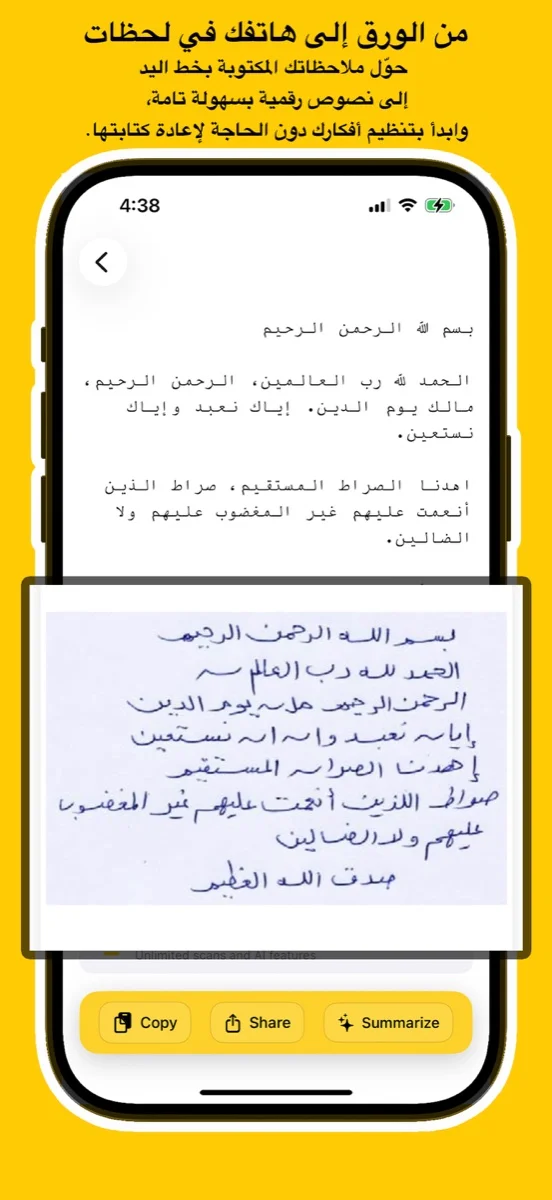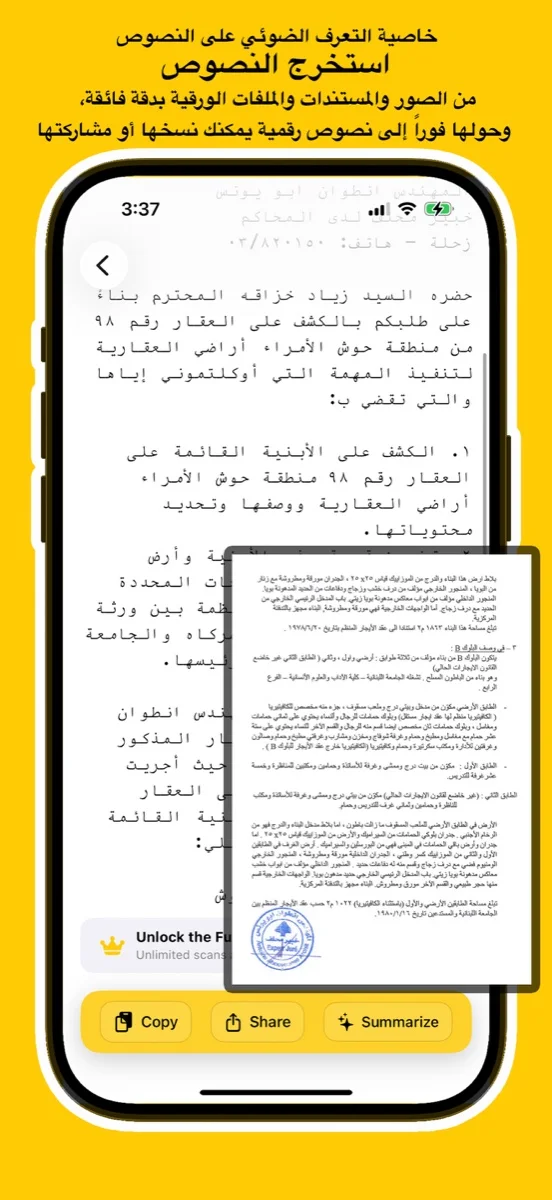
Scan documents, handwriting, or images and convert them into editable Arabic text using advanced AI. Try the free online demo below or download the app for full access on iOS, Android, and macOS.
يتعرف بدقة على النص العربي المطبوع والكتابة اليدوية من الصور أو ملفات PDF أو المستندات الورقية.

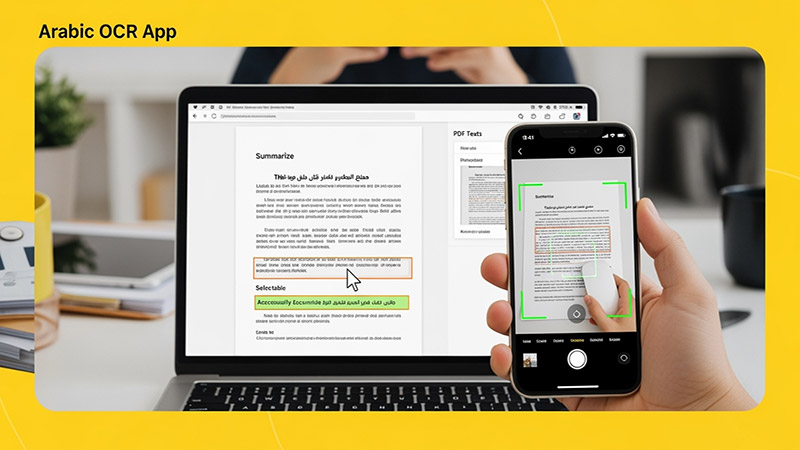
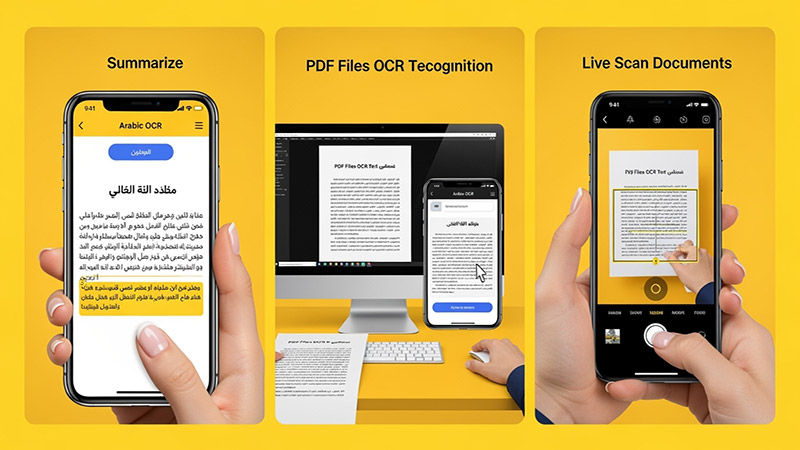
Upload an image, try your handwriting, or drop a file here to extract Arabic
text instantly.
(For full results & PDF support, download the app
below)
Click or Drag Image Here
Supports JPG, PNG - Try Handwriting!
(For PDF Files, please download the App)
Processing... / جاري المعالجة
Want full text & PDF support? / هل تريد النص الكامل ودعم PDF؟
Use advanced Arabic OCR to scan images, PDFs, and handwriting with high precision.
Perfect for students, professionals, journalists, and researchers.
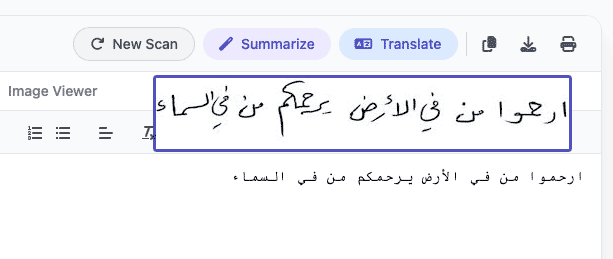
Experience unmatched precision in detecting and extracting Arabic handwriting. Our advanced AI models are trained to recognize various styles of scripts, from student notes to historical manuscripts, converting them into digital text instantly.
اكتشف قوة الذكاء الاصطناعي في التعرف على الخط العربي اليدوي واستخراجه بدقة مذهلة. تم تدريب نماذجنا المتقدمة لمعالجة مختلف أنماط الكتابة، من ملاحظات الطلاب إلى المخطوطات التاريخية، وتحويلها إلى نصوص رقمية فوراً.
Try Handwriting DemoDesigned specifically for the Mac ecosystem. Experience the ultimate privacy and speed with our Apple Local LLM integration. Process your sensitive documents entirely offline, ensuring your data never leaves your device.
مصمم خصيصاً لنظام macOS. استمتع بخصوصية وسرعة لا مثيل لهما مع تكامل Apple Local LLM. قم بمعالجة مستنداتك الحساسة بالكامل دون الاتصال بالإنترنت، مما يضمن عدم مغادرة بياناتك لجهازك أبداً.
Download for macOS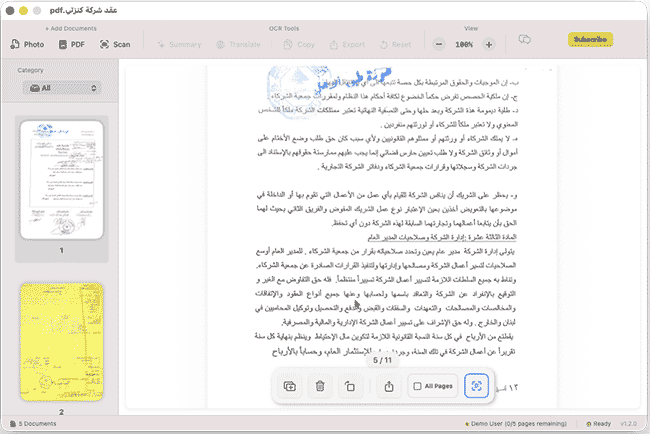
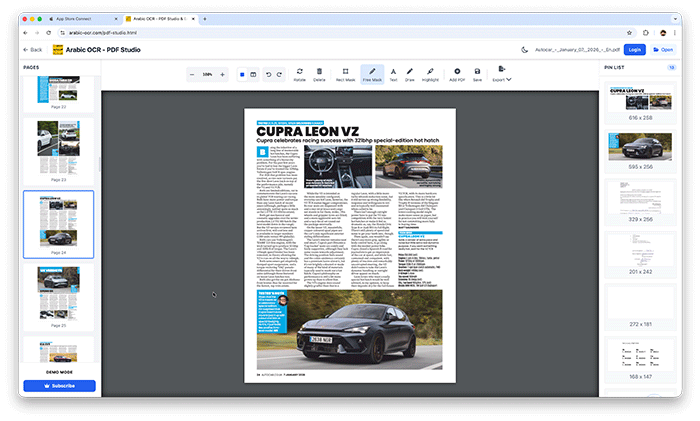
Edit, merge, and organize your PDFs effortlessly with our powerful online studio. No installation required—access advanced tools like page rotation, deletion, and text extraction directly in your browser.
قم بتعديل ودمج وإدارة ملفات PDF الخاصة بك بسهولة عبر الاستوديو المتطور أونلاين. إستمتع بأدوات متقدمة مثل تدوير الصفحات، الحذف، واستخراج النصوص مباشرة من متصفحك دون الحاجة لأي تثبيت.
Open PDF Studio Portalوداعاً للكتابة اليدوية! مع تطبيقنا، يمكنك استخراج النصوص العربية من أي مصدر بضغطة زر واحدة عبر جميع تطبيقاتنا.
دعم كامل للخطوط العربية المطبوعة واليدوية بفضل خوارزميات المعالجة المتقدمة.
معالجة فورية للصور، المستندات الممسوحة ضوئياً، وملفات PDF متعددة الصفحات.
استمتع بتجربة مستخدم سلسة حيث يتم استخراج النصوص وتنسيقها خلال ثوانٍ معدودة.
نظام متطور يفهم سياق الحروف العربية لضمان أعلى مستويات الدقة وتقليل الأخطاء.
Learn how to use Arabic OCR Web Portal in minutes
This comprehensive tutorial covers everything you need to know about using the Arabic OCR Web Portal, including document scanning, text extraction, AI-powered summarization, and translation features.
Learn how to edit, merge, and manage your PDFs with PDF Studio
OS Script mapkey in PTC Creo Parametric allows you to execute external operating system commands (like batch files, Python scripts, or PowerShell) directly from within the Creo environment. Example Syntax You can define an OS Script mapkey manually in your config.pro (or the newer mapkeys.profile in Creo 11) using the PTC Community Code Example:
mapkey run_py @MAPKEY_NAMEExecute Python Script;@MAPKEY_LABELPyScript;\ mapkey(continued) @SYSTEMpython "C:\scripts\my_creo_automation.py"; Use code with caution. Copied to clipboard How to Create via the UI Instead of manual coding, you can use the OS Script tab in the Mapkeys dialog: Mapkeys Settings and enter your desired shortcut (e.g., Navigate to the tab in the Record Mapkey dialog. Type the command you want the OS to run (e.g., C:\temp\cleanup.bat , then immediately click
Save your changes to your configuration file to keep the mapkey for future sessions. Why use OS Scripts? Automation:
Launch batch files that clean up temporary files in your working directory. External Integration:
Open a project tracker or specific network folder related to the active model. Background Tasks:
Run complex data exports or manipulations using Python or VB API without leaving the Creo window. PTC Community Solved: Script - PTC Community
You're looking for a good piece related to CREO Mapkey OS Script example.
What is CREO Mapkey?
CREO Mapkey is a feature in PTC CREO that allows users to create custom keyboard shortcuts, automate repetitive tasks, and streamline their workflow. Mapkey is a powerful tool that enables users to record and playback a sequence of actions, which can be saved and reused.
What is OS Script?
OS Script is a feature in CREO that allows users to automate tasks using scripts written in a programming language, such as Visual Basic Scripting Edition (VBSE) or JavaScript. OS Script provides a way to interact with the CREO application programmatically, enabling automation of complex tasks.
CREO Mapkey OS Script Example:
Here's an example of using CREO Mapkey OS Script to automate a task:
Example: Create a new part in CREO using a Mapkey OS Script creo mapkey os script example
Step 1: Create a new Mapkey
Step 2: Record the OS Script
Step 3: Edit the OS Script
Dim creoApp As Object
Set creoApp = CreateObject(" Creo Parametric.Application")
' Create a new part
creoApp.Documents.Add "Part"
' Set the part name
creoApp.ActiveDoc.Name = "ExamplePart"
Step 4: Save and Run the Mapkey
When you run the Mapkey, it will create a new part in CREO with the name "ExamplePart".
Tips and Variations:
By using CREO Mapkey OS Script, you can automate repetitive tasks, streamline your workflow, and increase productivity.
Master PTC Creo Mapkeys with OS Scripts: A Complete Guide Automating repetitive tasks in PTC Creo often requires going beyond simple button-click recordings. To truly streamline your workflow—like automatically renaming files, moving data to specific folders, or triggering external Python scripts—you need to leverage the power of OS Scripts within Mapkeys.
This guide provides clear examples and best practices for integrating Operating System commands directly into your Creo environment. What is a Creo OS Script Mapkey?
A standard mapkey records internal Creo commands. An OS Script mapkey uses the @SYSTEM syntax to "break out" of Creo and execute commands in the Windows Command Prompt (CMD) or shell environment. The Basic Syntax
In your config.pro file, an OS-based mapkey looks like this: mapkey example @SYSTEMstart notepad.exe; Use code with caution. mapkey: Initiates the definition. example: The shortcut keys you press.
@SYSTEM: Tells Creo to send the following text to the Operating System. ;: Ends the mapkey sequence. Example 1: Open the Current Working Directory
One of the most useful scripts is a "one-touch" button to open the folder where your current files are saved. The Mapkey: mapkey .fod @SYSTEMexplorer . ; Use code with caution. OS Script mapkey in PTC Creo Parametric allows
How it works: explorer . tells Windows to open File Explorer at the current relative path (the dot represents "here").
Why use it: Saves you from navigating through deep server directory trees manually. Example 2: Run a Python Script for Batch Renaming
If you have a Python script that processes exported CSVs or renames STEP files, you can trigger it without leaving the Creo interface. The Mapkey: mapkey .py @SYSTEMpython C:\scripts\process_data.py; Use code with caution.
Pro Tip: Ensure python is in your Windows Environment Path so Creo can find the executable. Example 3: Create a "Purge" Shortcut
Creo creates version numbers for every save (e.g., part.prt.1, part.prt.2). While Creo has a purge command, many users prefer the classic OS-level batch purge. The Mapkey: mapkey .pur @SYSTEMpurge; Use code with caution.
(Note: This requires the PTC purge.exe utility to be in your system path, which is standard in most installations.) Example 4: Advanced Scripting with Arguments
You can chain commands or call complex batch files (.bat or .cmd). This is useful for pushing files to a backup server. The Mapkey: mapkey .bak @SYSTEMC:\scripts\backup_tool.bat; Use code with caution. The backup_tool.bat Content:
@echo off mkdir "C:\Backup\%DATE%" copy *.prt* "C:\Backup\%DATE%\" echo Backup Complete! pause Use code with caution. Critical Tips for Success
Use the Mapkey Editor: While you can type these into config.pro, it is safer to use the Mapkey Dialog in Creo. When recording, choose "OS Script" from the "OS Command" tab.
Avoid Blocking: If you run a script that stays open (like a persistent CMD window), Creo may "freeze" until that window is closed. Use the start command (e.g., @SYSTEMstart cmd) to run the process in the background.
Pathing Issues: If your file paths contain spaces, you must use double quotes. However, because config.pro also uses quotes, you often need to escape them or use a batch file as a middleman.
The "Pause" Command: If your script runs and disappears too fast to see errors, add pause to the end of your .bat file so the window stays open for troubleshooting. Conclusion
Integrating OS scripts into your Creo mapkeys transforms the software from a CAD tool into a fully integrated engineering workstation. Start with a simple folder shortcut and gradually move toward complex automation with Python or Batch scripts. Open CREO and go to Tools > Mapkey
Save this as C:\creo_scripts\export_step_processor.bat:
@echo off REM This script expects one argument: the full path of the exported STEP file set STEP_FILE=%1REM Create dated folder (YYYY-MM-DD) set TODAY=%DATE:~10,4%-%DATE:~4,2%-%DATE:~7,2% set TARGET_DIR=C:\STEP_ARCHIVE%TODAY%
if not exist "%TARGET_DIR%" mkdir "%TARGET_DIR%"
REM Move the STEP file move "%STEP_FILE%" "%TARGET_DIR%" > nul
REM Log the action echo %DATE% %TIME% - %STEP_FILE% moved to %TARGET_DIR% >> C:\creo_scripts\export_log.csv
echo Done. exit /b 0
The syntax for calling an OS script from a Mapkey is surprisingly simple. You use the OS_Script command within the Mapkey definition.
Basic Syntax:
OS_Script <FullPathToScript> <Arguments>
Critical Warning: Creo does not wait for the OS script to finish. It launches the script asynchronously and immediately continues the Mapkey. To force a wait, you must use the !OS_Script (with an exclamation mark), which pauses Creo until the script returns an exit code.
This article shows how to create and use Creo Mapkeys and Object Script (OS) to automate repetitive tasks in Creo Parametric. It includes a working example, explanation of key elements, and tips for debugging and portability.
If you want, I can:
While you can record standard mapkeys via the Creo UI (File > Options > Environment > Mapkeys Settings), you cannot "record" an OS script action. You must manually type the @SYSTEM syntax into your config.pro file using a text editor like Notepad.
To edit your config easily:
@SYSTEM lines, save, and Import the file back into Creo.



This app uses the latest Google Vision API — a powerful AI technology trained on millions of real-world documents — to deliver exceptional OCR accuracy.
Whether it's complex handwriting or low-quality images, Google Vision’s neural networks ensure precise text recognition every time.
Benefit from ongoing improvements in Google’s AI models. As the API evolves, your OCR results get even better — no app update required.
يستخدم هذا التطبيق أحدث إصدار من Google Vision API، وهي تقنية ذكاء اصطناعي قوية تم تدريبها على ملايين المستندات الواقعية لضمان دقة فائقة في التعرف على النصوص.
سواء كانت كتابة يدوية معقدة أو صور بجودة منخفضة، توفر خوارزميات Google نتائج دقيقة في كل مرة.
استمتع بـ تحسينات متواصلة في أداء الذكاء الاصطناعي من Google. مع كل تحديث تقني، تتحسن نتائج التعرف دون الحاجة لتحديث التطبيق.
Discover tips, tutorials, and latest news about Arabic OCR and AI technology.